Exporting Icons: The Ultimate Workflow for Xcode and Android Studio (2025)
For many mobile developers, the most tedious part of the launch process isn't the code—it's the assets. Once you've perfected your design (ideally avoiding the 10 Common App Icon Mistakes), you are faced with a daunting task: generating the dozens of specific file sizes, naming them correctly, and placing them in the exact directory structure required by modern IDES.
In this guide, we break down the professional "DevOps" approach to icon management for both iOS and Android.
1. The Anatomy of Xcode Asset Catalogs (.xcassets)
Apple uses a system called Asset Catalogs to manage all your app’s visual resources. The primary container for your icon is usually named AppIcon.appiconset.
The Structure
Inside this folder, you’ll find:
- A series of PNG files: Every size from 20x20px to 1024x1024px.
- The
Contents.jsonfile: This is the "brain" of the catalog. It maps each file to a specific device (iPhone, iPad, Mac) and scale (@2x, @3x).
Manual Workflow vs. Professional Workflow
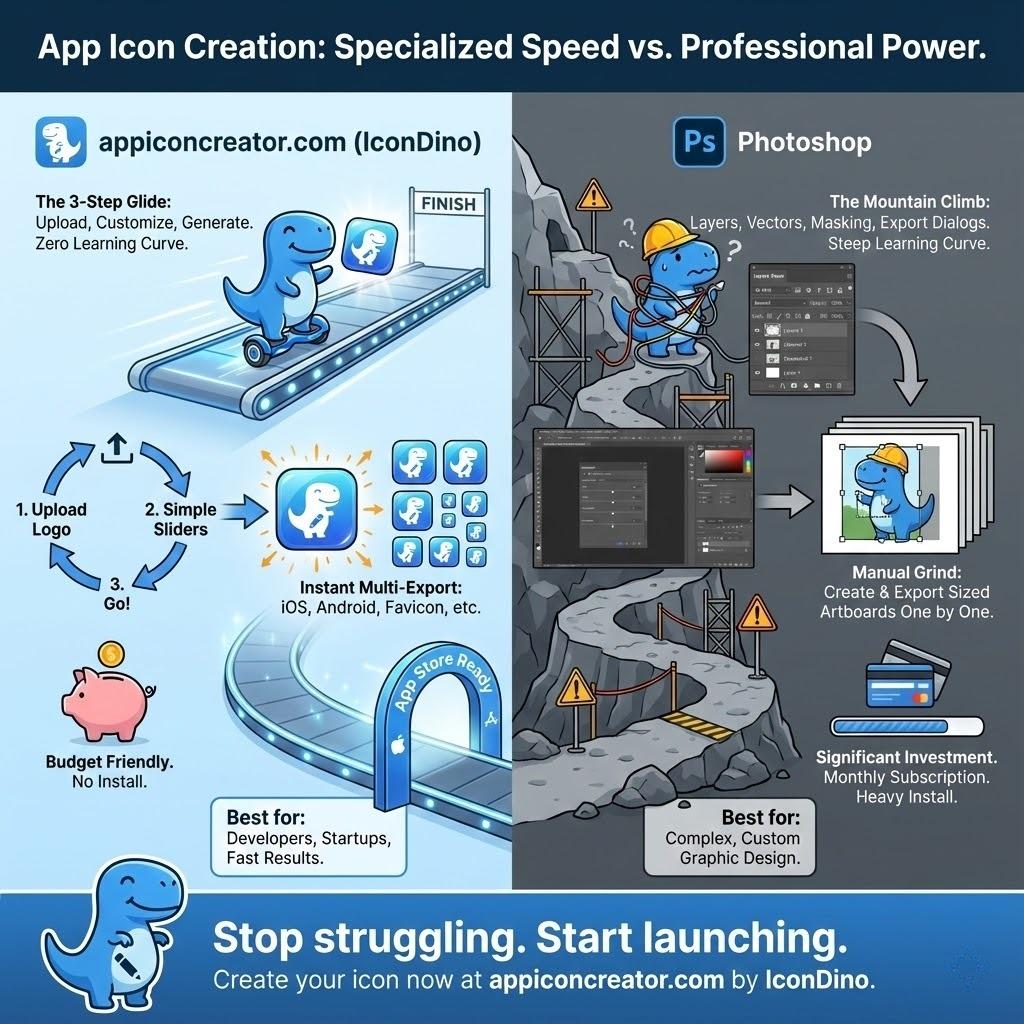
If you do this manually:
- You must generate ~20 files.
- You must edit the JSON file or drag-and-drop each file one by one into the Xcode UI.
- Total time: 15-20 minutes.
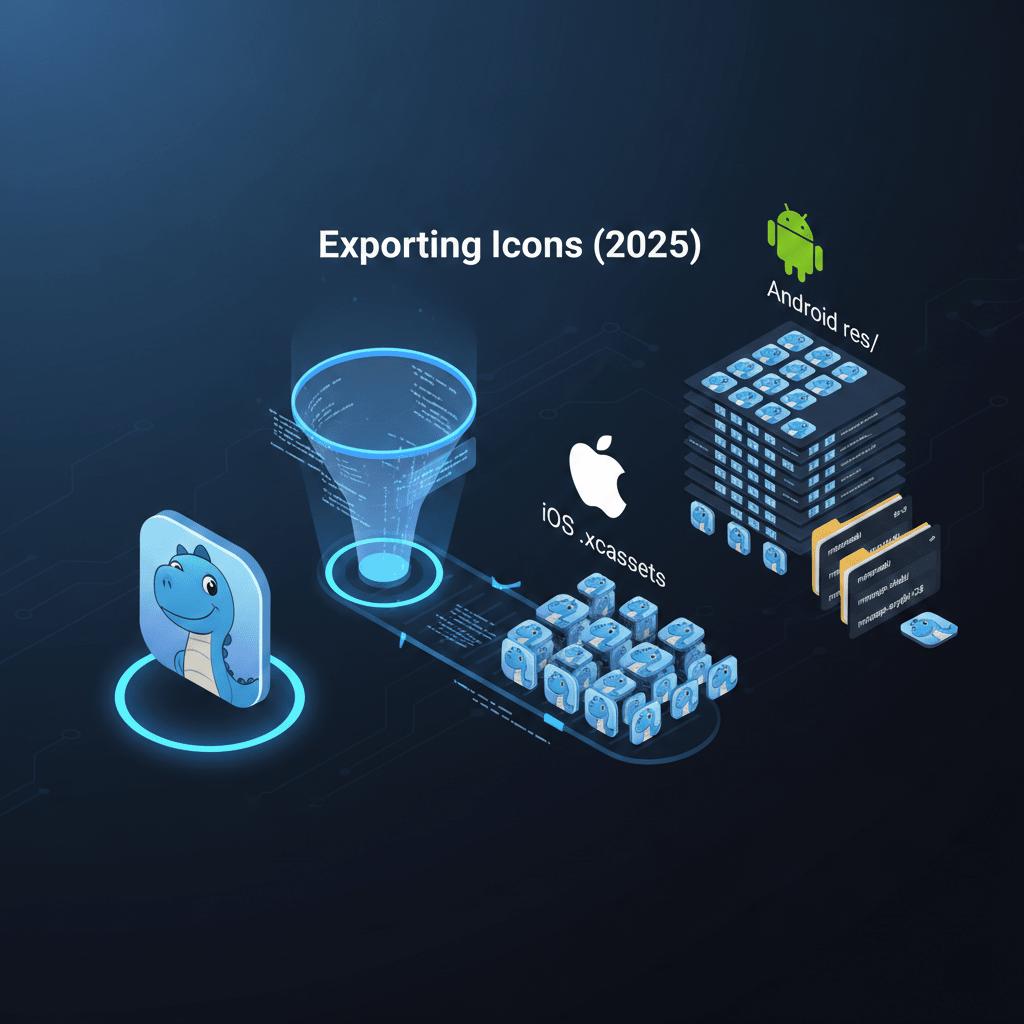
The Professional Approach: Use a generator that produces the entire .appiconset folder structure. You simply drag the folder into Xcode, and every slot is filled instantly. No JSON editing required.
2. The Android Resource Hierarchy (res/)
Android is significantly more complex because of its device fragmentation and the shift to Adaptive Icons.
The Directory System
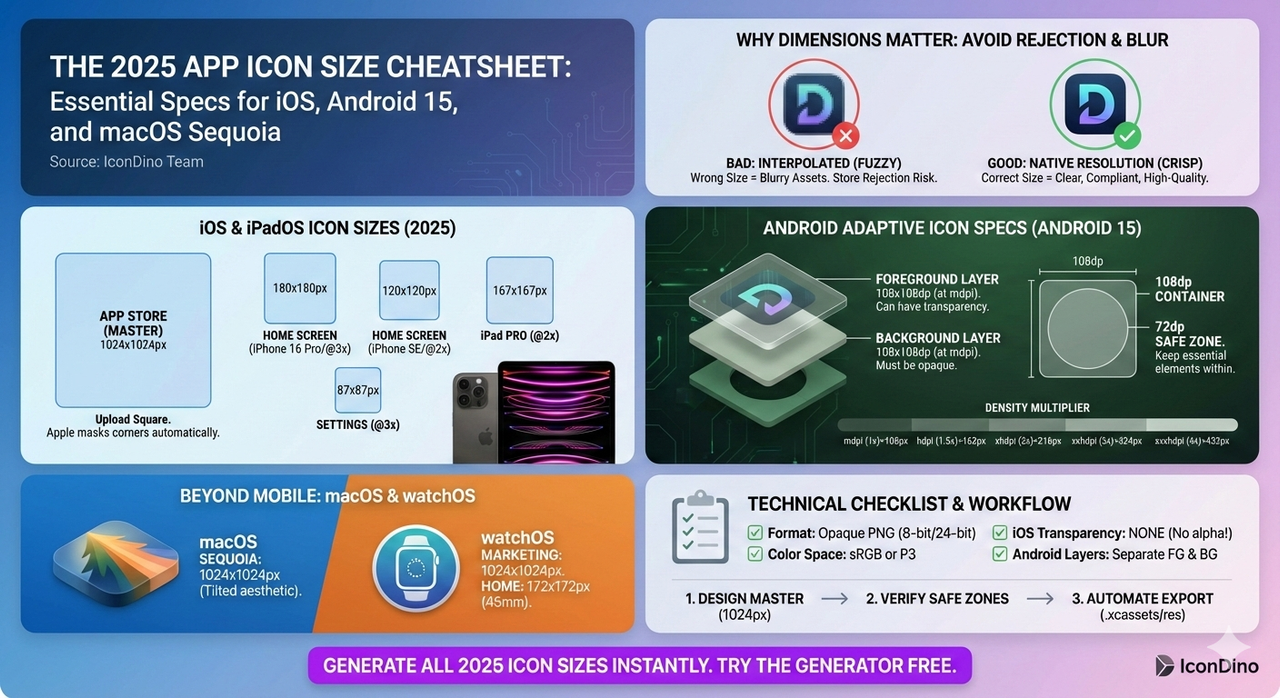
Android resources are organized by "density." You need to provide assets for:
mipmap-mdpi(Baseline)mipmap-hdpi(1.5x)mipmap-xhdpi(2.0x)mipmap-xxhdpi(3.0x)mipmap-xxxhdpi(4.0x)mipmap-anydpi-v26(The home for Adaptive Icons)
Understanding the XML Definition
For modern Android (API 26+), your icon isn't just a PNG. It's an ic_launcher.xml file that points to two separate layers:
<adaptive-icon xmlns:android="http://schemas.android.com/apk/res/android">
    <background android:drawable="@mipmap/ic_launcher_background"/>
    <foreground android:drawable="@mipmap/ic_launcher_foreground"/>
</adaptive-icon>
If you don't understand these layers yet, read our iOS vs. Android Icon Guidelines for the full breakdown.
The Professional Approach: Your export tool should provide the entire res/ folder tree. You copy this into your app/src/main directory, and it merges perfectly with your existing code.
3. Advanced Considerations: Store Assets vs. App Assets
Many developers forget that the App Store and Play Store require large marketing assets that are different from the ones embedded in the code.
The 1024x1024 "Master"
- iOS: You need this for App Store Connect.
- Android: You need this for the Play Console "Feature Graphic" and Icon slot.
The Marketing Banner
Beyond the icon, the stores require screenshots and feature banners. Ensure your icon design is consistent across these marketing materials. The Psychology of App Icons applies here too—your marketing banner should echo the color and theme of your icon to build brand recognition.
4. The "DevOps" for Icons: Automation is Key
Why automate?
- Zero Human Error: No more misnamed files like
icon_120_v2_final.png. - Instant Iteration: Want to change the background color? Regenerate the whole set in 5 seconds instead of 1 hour.
- Consistency: Ensures that the @2x asset is exactly half the size of the @3x asset, preventing subtle rendering artifacts.
Step-by-Step Modern Workflow
- Draft: Design your icon at 1024x1024px.
- Verify: Check your design against both Apple HIG and Google Material Design codes.
- Generate: Feed your high-res asset into a dedicated generator like IconDino.
- Integrated:
- iOS: Open
App/Assets.xcassetsin the Finder. ReplaceAppIcon.appiconset. - Android: Copy the
resfolder intoapp/src/main/.
- iOS: Open
- Build: Run your project. Verify the icon looks sharp on a real device.
Common Export Failures and How to Debug Them
Even with a professional tool, you might encounter issues during the build process.
- "Missing 1024x1024 Icon": This is a classic Xcode build error. It occurs because the App Store requires a full-size marketing icon in the bundle. Ensure your
Contents.jsonpoints to a valid 1024px PNG. - Blurry Assets: This usually happens if you design at a low resolution and try to scale up. Always design at 1024x1024 or use vector formats (see below).
- Android "Adaptive" Masking: If your logo looks cut off on a Samsung device but fine on a Pixel, it's likely because your foreground layer is too large. Keep your primary artwork within the 72dp inner circle of the 108dp asset.
Optimizing PNGs for Load Time and Build Size
While icon files are small, every kilobyte counts in a massive mobile project.
- Bit Depth: Use 8-bit PNGs where possible unless you have extremely complex gradients that require 24-bit.
- Metadata Removal: Standard design tools often embed "XMP" metadata or "ICC profiles" that aren't needed by the mobile OS. A professional generator should strip these to save space.
- Consistency: Ensure that your iOS vs. Android Icons use the same compression settings to keep your app bundle professional.
The Role of Vector Graphics (SVG and PDF)
While final icons are often PNGs, the source should always be vector-based.
- Scalability: Vectors allow you to scale from a favicon to a billboard without losing a single pixel of quality.
- Android Vector Drawables: For monochrome and smaller icons, Android prefers
.xmlvector drawables over PNGs. - PDF for Xcode: Did you know you can provide a single PDF in Xcode and it will automatically generate the 1x, 2x, and 3x PNGs at build time? It's a powerful "set it and forget it" feature for developers.
Conclusion
Exporting icons is no longer just "saving images." It's about providing the right structural data for the most advanced mobile operating systems in the world. By treating your assets with the same respect as your code, you ensure a smoother deployment and a more professional end product.
Stop resizing. Start generating. Check out the 10 Common App Icon Mistakes to ensure your master design is ready for prime time.
Ready to Automate Your Workflow?
Join thousands of developers who save hours on Every App Launch. Generate your full asset set now.